
Sandboxing My Coding Agents

This is another learn-as-I-go post. I wanted to put some guardrails around my agents after seeing them get a little too curious.
I was running OpenAI’s Luna model in VS Code’s agentic harness and noticed the “thinking” steps it was taking while exploring context for a task. It started wandering into other codebases on my machine that had nothing to do with the repo I was working in. That behavior, plus some recent cybersecurity news about LLMs and agents making unexpected network calls, made me want to sandbox things properly.
An autonomous coding agent has two capabilities I care about: it can change code, and it can discover things. The second one is easy to overlook. If the agent can inspect the host filesystem or make arbitrary network requests, a prompt injection, compromised dependency, or plain old model mistake can turn exploration into an incident.
My first thought was just run the harness in Docker. Simple enough.
A basic Docker sandbox for a CLI agent
I started with the Pi coding agent as a test case. The first version was deliberately boring: a small Node image with a few tools installed. Here’s the Dockerfile I ended up with:
FROM node:22-slim

RUN apt-get update && apt-get install -y --no-install-recommends \
    git \
    bash \
    curl \
    ripgrep \
    ca-certificates \
    && rm -rf /var/lib/apt/lists/*

RUN npm install -g --ignore-scripts @earendil-works/pi-coding-agent

RUN useradd -m -s /bin/bash agentuser
USER agentuser
WORKDIR /workspace

ENTRYPOINT ["pi"]
And then I can build the image:
docker build -t agent-sbx:latest .
First test: can it reach the internet?
docker run --rm -ti \
  --read-only \
  --security-opt="no-new-privileges:true" \
  --cap-drop=ALL \
  --entrypoint /bin/bash \
  agent-sbx:latest
Inside the container I can run:
curl -I https://google.com
# HTTP/2 301
# ...
Yep, it can phone home. That’s exactly what I want to control. I added full network isolation:
docker run --rm -ti \
  --network none \
  --read-only \
  --security-opt="no-new-privileges:true" \
  --cap-drop=ALL \
  --entrypoint /bin/bash \
  agent-sbx:latest
curl -I https://google.com
# curl: (6) Could not resolve host: google.com
Good. Now I can run it for real with a few more hardening options:
--network none: no interfaces at all. No outbound HTTP, no package installs, no exfiltration.--read-only: root filesystem is read-only. Can’t drop binaries or with existing packages (e.g. globally installed node_modules).--tmpfs /tmp:exec: RAM-backed scratch space that disappears when the container stops.:execlets tools write temp scripts.--tmpfs /home/agentuser/.pi: fresh in-memory state per run, no cross-run leakage.-v "$(pwd):workspace:rw": the one intentional write path back to my machine.
docker run --rm -ti \
  --network none \
  --read-only \
  --tmpfs /tmp:exec \
  --tmpfs /home/agentuser/.pi \
  -v "$(pwd):/workspace:rw" \
  --security-opt="no-new-privileges:true" \
  --cap-drop=ALL \
  agent-sbx:latest
Now I can confirm that the agent can only see the filesystem within the Docker container.
ls /Users/bdxn
# ls: /Users/bdxn: No such file or directory
This is great. I’ve locked down the filesystem and the network successfully. Maybe too successfully. The agent can’t call my local LLM, or any externally hosted model for that matter. A perfectly isolated agent is not very useful when it can’t even call the underlying model.
Adding a controlled egress proxy
The next problem was utility. I wanted the agent to reach my local model endpoint on the LAN and possibly perform a search through an API like Brave or Tavily, but only when I explicitly allowed it. The simplest way to express that policy was a containerized egress proxy with ACLs. I picked Squid because it has good documentation and it’s battle tested.
This is least privilege in a form I can actually inspect: the agent has no direct route to the network, and the proxy has a small list of permitted destinations. The policy is visible in source control instead of living in a vague instruction to “be careful.”
I opted for the prebuilt image as I didn’t need any additional customization beyond the standard configuration file:
docker pull ubuntu/squid:latest
Here’s my first pass at a basic squid.conf that acts as an explicit firewall:
http_port 3128

acl allowed_lan dst 192.168.1.173
acl allowed_wan dstdomain .google.com

acl Safe_ports port 80
acl Safe_ports port 8080
acl Safe_ports port 443
acl CONNECT method CONNECT

http_access deny !Safe_ports

http_access allow allowed_lan
http_access allow allowed_wan

http_access deny all
Note that my local LLM is exposed on my local area network at
192.168.1.173:8080at the moment, hence the addition of the IP address and non-standard port.
Now only specified IPs and domains are allowed. Everything else is denied.
Then I can use Docker Compose to tie the agent container to the Squid container that enforces the ACLs:
version: "3.8"

networks:
  agent_sandbox:
    internal: true
  egress_net:
    driver: bridge

services:
  egress-proxy:
    image: ubuntu/squid:latest
    volumes:
      - ./proxy/squid.conf:/etc/squid/squid.conf:ro
    networks:
      - agent_sandbox
      - egress_net

  sandbox-agent:
    build: ./agent-sbx-workspace
    image: agent-sbx
    stdin_open: true
    tty: true
    read_only: true
    security_opt:
      - "no-new-privileges:true"
    cap_drop:
      - ALL
    tmpfs:
      - /tmp:exec
      - /home/agentuser/.pi
    volumes:
      - ./workspace:/workspace:rw
    networks:
      - agent_sandbox
    environment:
      - HTTP_PROXY=http://egress-proxy:3128
      - HTTPS_PROXY=http://egress-proxy:3128
      - http_proxy=http://egress-proxy:3128
      - https_proxy=http://egress-proxy:3128
Now:
docker compose build
docker compose run --rm sandbox-agent
Inside the container:
curl -I https://google.com
# allowed

curl -I http://192.168.1.173:8080
# allowed

curl -I https://nytimes.com
# blocked
I’ve confirmed that the agent can only talk to what I explicitly allow, both on my local filesystem and on the network.
Doing the same for VS Code Copilot
Ultimately I want to continue using VS Code’s GitHub Copilot integration. Call me a luddite, but I like using Copilot inside the editor as a copilot, not the main pilot. Sandboxing VS Code uses the same concept as the CLI harness above. Instead of starting with a Dockerfile and building my own image, Microsoft provides Dev Container images. Dev Containers have supported isolated, reproducible development environments since before agentic coding was a thing. In my case, they are useful when I don’t fully trust an agent or simply want another layer of isolation around a task.
VS Code Dev Containers run the project inside an isolated Docker container that VS Code treats as a remote development environment. The editor launches a lightweight server inside the container, and the VS Code UI connects to that server while remaining familiar. The important detail here is the boundary: the editor backend and the agent operate inside the container, with only the workspace mounted from the host.
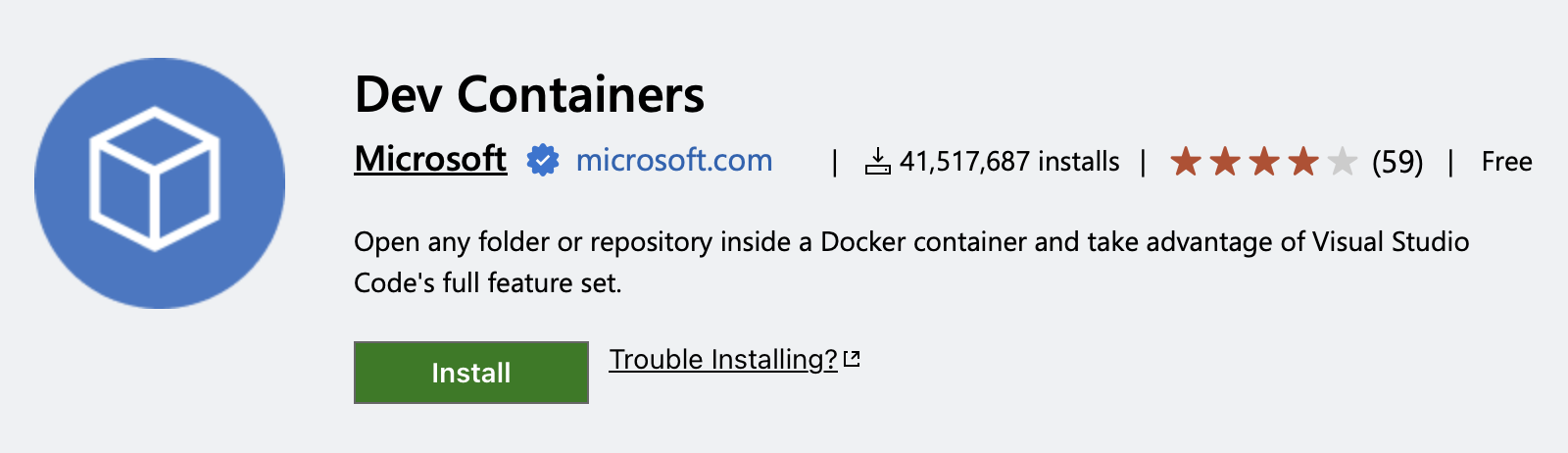
The first step is to install the Dev Containers extension:
Then, within my workspace in VS Code, I created a .devcontainer directory as shown:
.devcontainer/
  devcontainer.json
  docker-compose.yaml
  squid.conf
The Squid config for VS Code needs to be looser. Copilot seems to need access to .github.com broadly, not just a partitioned subdomain. This is the minimal allow-list that worked for me with my local LLM:
http_port 3128

acl allowed_lan dst 192.168.1.173
acl allowed_vscode dstdomain .github.com

acl Safe_ports port 80
acl Safe_ports port 8080
acl Safe_ports port 443
acl CONNECT method CONNECT

http_access deny !Safe_ports

http_access allow allowed_lan
http_access allow allowed_vscode

http_access deny all
The docker-compose.yaml file is mostly the same, except that I swap the custom Pi image for Microsoft’s image and add some in-memory filesystem locations that VS Code expects to write to during normal operation:
version: "3.8"

networks:
  # Internal network with NO direct internet gateway for agent
  agent_sandbox:
    internal: true
  # Egress network giving Squid proxy internet access
  egress_net:
    driver: bridge # default; adding clarity

services:
  # Egress Proxy Service (The Gatekeeper)
  egress-proxy:
    image: ubuntu/squid:latest
    volumes:
      - ./squid.conf:/etc/squid/squid.conf:ro
    networks:
      - agent_sandbox
      - egress_net
    restart: always

  # Sandboxed Agent
  agent-sandbox:
    image: mcr.microsoft.com/devcontainers/base:ubuntu # <---- UPDATED FOR VSCODE
    stdin_open: true
    tty: true
    read_only: true
    security_opt:
      - "no-new-privileges:true"
    cap_drop:
      - ALL
    tmpfs:
      - /tmp:exec
      - /var/tmp
      - /home/vscode:exec,uid=1000,gid=1000 # <---- UPDATED FOR VSCODE
    volumes:
      - ..:/workspace:rw
    networks:
      - agent_sandbox
    environment:
      # Force all HTTP/HTTPS traffic through the proxy
      - HTTP_PROXY=http://egress-proxy:3128
      - HTTPS_PROXY=http://egress-proxy:3128
      - http_proxy=http://egress-proxy:3128
      - https_proxy=http://egress-proxy:3128
    # keep container alive for vscode connection
    command: ["sleep", "infinity"]
Lastly, the devcontainer.json file tells VS Code how to start in Dev Container mode.
{
  "name": "Sandboxed Dev Container (Copilot Allowed)",
  "dockerComposeFile": "docker-compose.yaml",
  "service": "agent-sandbox",
  "workspaceFolder": "/workspace",

  // Inject proxy environment variables into VS Code Server process
  "remoteEnv": {
    "HTTP_PROXY": "http://egress-proxy:3128",
    "HTTPS_PROXY": "http://egress-proxy:3128",
    "http_proxy": "http://egress-proxy:3128",
    "https_proxy": "http://egress-proxy:3128"
  },

  // Automatically pre-install GitHub Copilot inside the sandbox
  "customizations": {
    "vscode": {
      "settings": {
        "http.proxy": "http://egress-proxy:3128",
        "http.proxyStrictSSL": true
      },
      "extensions": ["github.copilot", "github.copilot-chat"]
    }
  },

  // Keep root OS read-only and enforce default user
  "remoteUser": "vscode"
}
The Dev Container runs the editor backend inside a container with the same read-only + tmpfs + proxy setup, and mounts only the workspace folder I want it to see.
$ docker ps
CONTAINER ID   IMAGE                                         COMMAND                  ...   PORTS      NAMES
0642bedb5e47   mcr.microsoft.com/devcontainers/base:ubuntu   "/bin/sh -c 'echo Co…"   ...   agent-sandbox_devcontainer-agent-sandbox-1
ba3b7a1aec14   ubuntu/squid:latest                           "entrypoint.sh -f /e…"   ...   3128/tcp   agent-sandbox_devcontainer-egress-proxy-1
It works, but it’s far from perfect. Copilot still needs some “phone home” capabilities even when I’m using a local model, which means opening up GitHub domains. There are more advanced ways to filter that traffic, but Squid ACLs are an easy first step. Perhaps a reason to start using a harness like Pi more seriously.
Tradeoffs
An agent restricted this much is less useful by definition. It can’t just npm install or go get whatever it wants; I have to do it manually when needed. Package managers are a risky attack vector anyway, as recent supply chain attacks have shown.
For hobby projects this feels right. I get isolation for my local filesystem and can limit blanket network access, with explicit allow-lists for the things I actually want. For higher-risk environments, you’d want more: vetted tools, stronger identity and authorization, and an AI gateway with full access control for agent actions.
There is also an important limitation: a proxy is an application-layer control, not a magic firewall. Tools that ignore proxy environment variables, use raw sockets, or resolve and connect in unexpected ways need separate controls. The container network boundary is doing the heavier work here; Squid is the explicit allow-list for traffic that chooses to use the proxy.
Balancing restrictive governance and utility is messy in practice. This setup gives me enough peace of mind that my agent isn’t wandering around my machine or making surprise network calls.
This is the kind of platform engineering problem I find interesting at larger companies too. Whether the system is protecting customer data or controlling software and tooling across a broader operational landscape, the underlying challenge is similar: turn a useful capability into a constrained, observable workflow without making engineers fight the system. The useful engineering work is in finding that boundary and then making it easy to operate.
Next step for me is tightening the GitHub allow-list further and experimenting with per-task egress policies instead of a static list.